地图导航交互
本文档介绍 OpenLayers 中处理地图导航的交互组件 - 特别是平移、缩放和旋转地图视图。这些交互将用户输入(鼠标、触摸、键盘)转换为视图转换。关于操作要素(选择、绘图、修改)的交互信息,请参阅 要素交互。
概述
地图导航交互允许用户通过鼠标、触摸或键盘事件更改视图状态(中心点、分辨率和旋转)。OpenLayers 为常见导航模式提供了一组内置交互,所有这些交互都扩展了基类 Interaction。

交互架构
所有地图导航交互都继承自 Interaction 基类,该类定义了处理地图浏览器事件和与地图集成的通用方法。

关键导航交互
基于鼠标的交互
DragPan
允许用户通过单击和拖动来平移地图。此交互捕获指针移动并相应地调整地图中心。
// DragPan 的关键选项
{
  condition: Function,  // Function to determine if event should be handled
  onFocusOnly: boolean, // If true, only works when map has focus
  kinetic: Kinetic      // Kinetic inertia to apply to the pan
}交互的工作方式是:
- 捕获指针按下事件
- 在拖动期间跟踪指针移动
- 计算地图坐标中的增量移动
- 调整视图中心点
- 可选地在用户释放指针时应用动量动画
MouseWheelZoom
启用通过滚动鼠标滚轮来缩放地图。它将滚轮增量转换为分辨率变化。
// MouseWheelZoom 的关键选项
{
  condition: Function,        // Function to determine if event should be handled
  onFocusOnly: boolean,       // If true, only works when map has focus
  maxDelta: number,           // Maximum mouse wheel delta (default: 1)
  duration: number,           // Animation duration in milliseconds (default: 250)
  timeout: number,            // Mouse wheel timeout in milliseconds (default: 80)
  useAnchor: boolean,         // Whether to zoom to mouse position (default: true)
  constrainResolution: boolean // Snap to closest zoom level (default: false)
}交互区分触控板(小、平滑增量)和鼠标滚轮(较大的不同步)输入,为两者提供适当的用户体验。
DragRotate
允许在按住修饰键(默认为 Alt+Shift)的同时单击和拖动来旋转地图。
// DragRotate 的关键选项
{
  condition: Function, // Function to determine if event should be handled
  duration: number     // Animation duration in milliseconds (default: 250)
}此交互使用从地图中心到指针位置的角度来计算旋转变化。
DragZoom
允许用户在按住修饰键(默认为 Shift)的同时绘制矩形来缩放到区域。地图视图将动画以适应绘制的矩形。
// DragZoom 的关键选项
{
  className: string,   // CSS class for the zoom box (default: 'ol-dragzoom')
  condition: Function, // Function to determine if event should be handled
  duration: number,    // Animation duration in milliseconds (default: 200)
  out: boolean,        // If true, zoom out instead of in (default: false)
  minArea: number      // Minimum area in pixels to trigger zoom (default: 64)
}基于触摸的交互
PinchZoom
启用通过在触摸屏幕上用两根手指捏合来缩放地图。
// PinchZoom 的关键选项
{
  duration: number // Animation duration in milliseconds (default: 400)
}此交互计算触摸点之间的距离以确定缩放级别变化。
PinchRotate
允许通过在触摸屏幕上用两根手指旋转来旋转地图。
// PinchRotate 的关键选项
{
  duration: number,  // Animation duration in milliseconds (default: 250)
  threshold: number  // Minimal angle in radians to start rotation (default: 0.3)
}交互计算触摸点之间的角度以确定旋转变化。
DragRotateAndZoom
一个结合旋转和缩放的专门交互。它通过在拖动时按住 shift 键激活(不包括在默认交互中)。
// DragRotateAndZoom 的关键选项
{
  condition: Function, // Function to determine if event should be handled
  duration: number     // Animation duration in milliseconds (default: 400)
}与 View 的交互
导航交互修改地图的视图状态,该状态由三个主要组件组成:
- 中心点: 视口中心的坐标
- 分辨率: 每个像素的地图单位数(与缩放级别成反比关系)
- 旋转: 以弧度表示的旋转角度
当交互修改这些属性时,它们通常使用 View 的方法:
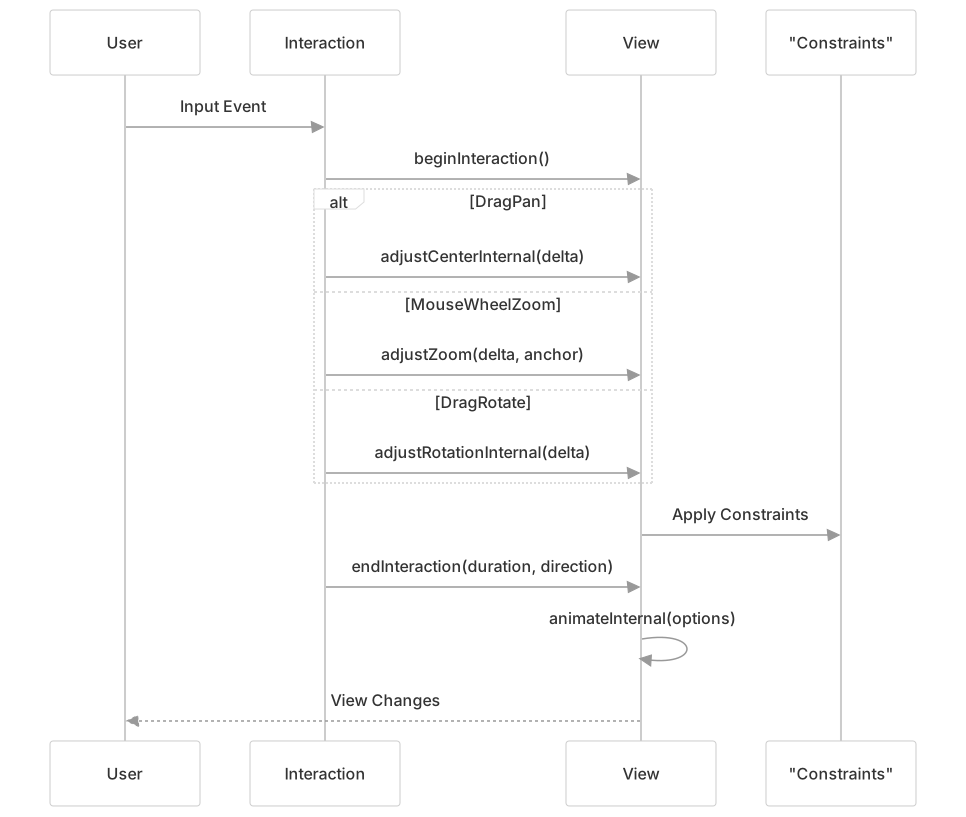
约束
View 对导航应用约束以确保地图保持在定义的边界内并具有适当的行为。三种类型的约束影响导航交互:
- 中心点约束: 限制地图中心点可以定位的位置
- 分辨率约束: 控制最小和最大分辨率(缩放级别)
- 旋转约束: 确定允许的旋转值
// Example constraint definitions
centerConstraint = createExtent(extent, onlyCenter, smooth);
resolutionConstraint = createSnapToResolutions(resolutions, smooth, maxExtent, showFullExtent);
rotationConstraint = createSnapToZero(tolerance);在交互期间和交互之后,这些约束被应用以确保视图保持在允许的参数内。
动画
大多数导航交互都包含动画以提供流畅的用户体验。交互结束后,视图可能会动画到其最终状态:

OpenLayers 中的动画系统支持:
- 持续时间控制(动画需要多长时间)
- 缓动函数(动画如何加速和减速)
- 链式动画(多个动画按顺序运行)
- 同时动画(中心点、分辨率和旋转可以独立动画化)
自定义导航交互
配置默认交互
创建地图时,您可以配置默认交互或提供自己的集合:
// Using default interactions with configuration
const map = new Map({
  interactions: defaultInteractions({
    mouseWheelZoom: false,           // Disable mouse wheel zoom
    dragPan: {
      kinetic: new Kinetic(-0.01, 0.05, 100) // Custom kinetic settings
    }
  })
});

// Providing a completely custom set of interactions
const map = new Map({
  interactions: [
    new DragPan(),
    new MouseWheelZoom({
      useAnchor: false,  // Always zoom to center
      duration: 500      // Longer animation duration
    })
  ]
});交互条件
每个交互都可以具有确定其何时响应事件的条件:
// DragPan only while holding Alt key
const dragPan = new DragPan({
  condition: altKeyOnly
});

// MouseWheelZoom only when Shift key is held
const mouseWheelZoom = new MouseWheelZoom({
  condition: shiftKeyOnly
});OpenLayers 提供了几个内置条件函数,如 shiftKeyOnly、altKeyOnly、primaryAction 等。
最佳实践
响应式交互: 考虑为不同设备配置不同的交互(例如,仅在触摸设备上启用触摸交互)
性能: 对于低功率设备或复杂地图:
- 使用更长的动画持续时间
- 考虑禁用动量平移
- 对于大型数据集,调整交互约束
可用性考虑:
- 根据地图内容设置适当的交互约束
- 对于精确导航,使用
constrainResolution: true吸附到缩放级别 - 对于一般浏览,使用
constrainResolution: false进行平滑缩放
常见配置:
- 对于透视视图: 使用无约束旋转
- 对于传统网络地图: 将旋转约束为零或禁用旋转交互
- 对于包含大量数据的地图: 考虑将范围限制到相关区域
故障排除
导航交互的常见问题包括:
意外的导航行为:
- 检查视图上的约束
- 审查交互条件
- 确保动画未被意外取消
性能问题:
- 减少动画持续时间
- 简化地图内容
- 考虑禁用平滑约束选项
交互不工作:
- 验证交互是活动的
- 检查是否满足条件
- 检查事件传播(交互按相反顺序检查)