Map Navigation Interactions
This document describes the interaction components in OpenLayers that handle map navigation - specifically panning, zooming, and rotating the map view. These interactions translate user input (mouse, touch, keyboard) into view transformations. For information about interactions that manipulate features (select, draw, modify), see Feature Interactions.
Overview
Map navigation interactions allow users to change the view state (center, resolution, and rotation) through mouse, touch, or keyboard events. OpenLayers provides a set of built-in interactions for common navigation patterns, all of which extend the base Interaction class.

Interaction Architecture
All map navigation interactions inherit from the Interaction base class, which defines the common methods for handling map browser events and integration with the map.

Key Navigation Interactions
Mouse-Based Interactions
DragPan
Allows users to pan the map by clicking and dragging. This interaction captures pointer movements and adjusts the map center accordingly.
// Key options for DragPan
{
  condition: Function,  // Function to determine if event should be handled
  onFocusOnly: boolean, // If true, only works when map has focus
  kinetic: Kinetic      // Kinetic inertia to apply to the pan
}The interaction works by:
- Capturing the pointer down event
- Tracking the pointer movement during drag
- Calculating the delta movement in map coordinates
- Adjusting the view center
- Optionally applying kinetic animation when the user releases the pointer
MouseWheelZoom
Enables zooming the map by scrolling the mouse wheel. It translates wheel deltas into resolution changes.
// Key options for MouseWheelZoom
{
  condition: Function,        // Function to determine if event should be handled
  onFocusOnly: boolean,       // If true, only works when map has focus
  maxDelta: number,           // Maximum mouse wheel delta (default: 1)
  duration: number,           // Animation duration in milliseconds (default: 250)
  timeout: number,            // Mouse wheel timeout in milliseconds (default: 80)
  useAnchor: boolean,         // Whether to zoom to mouse position (default: true)
  constrainResolution: boolean // Snap to closest zoom level (default: false)
}The interaction differentiates between trackpad (small, smooth deltas) and mouse wheel (larger distinct steps) input to provide an appropriate user experience for both.
DragRotate
Allows rotating the map by clicking and dragging while holding modifier keys (Alt+Shift by default).
// Key options for DragRotate
{
  condition: Function, // Function to determine if event should be handled
  duration: number     // Animation duration in milliseconds (default: 250)
}This interaction uses the angle from the map center to the pointer position to calculate rotation changes.
DragZoom
Allows users to zoom to an area by drawing a box while holding a modifier key (Shift by default). The map view will animate to fit the drawn box.
// Key options for DragZoom
{
  className: string,   // CSS class for the zoom box (default: 'ol-dragzoom')
  condition: Function, // Function to determine if event should be handled
  duration: number,    // Animation duration in milliseconds (default: 200)
  out: boolean,        // If true, zoom out instead of in (default: false)
  minArea: number      // Minimum area in pixels to trigger zoom (default: 64)
}Touch-Based Interactions
PinchZoom
Enables zooming the map by pinching with two fingers on a touch screen.
// Key options for PinchZoom
{
  duration: number // Animation duration in milliseconds (default: 400)
}This interaction calculates the distance between touch points to determine zoom level changes.
PinchRotate
Allows rotating the map by twisting with two fingers on a touch screen.
// Key options for PinchRotate
{
  duration: number,  // Animation duration in milliseconds (default: 250)
  threshold: number  // Minimal angle in radians to start rotation (default: 0.3)
}The interaction calculates the angle between touch points to determine rotation changes.
DragRotateAndZoom
A specialized interaction that combines rotation and zooming. It's activated by holding the shift key while dragging (not included in default interactions).
// Key options for DragRotateAndZoom
{
  condition: Function, // Function to determine if event should be handled
  duration: number     // Animation duration in milliseconds (default: 400)
}Interaction with the View
Navigation interactions modify the map's view state, which consists of three primary components:
- Center: The coordinate at the center of the viewport
- Resolution: The number of map units per pixel (inversely related to zoom level)
- Rotation: The rotation angle in radians
When interactions modify these properties, they typically use the View's methods:
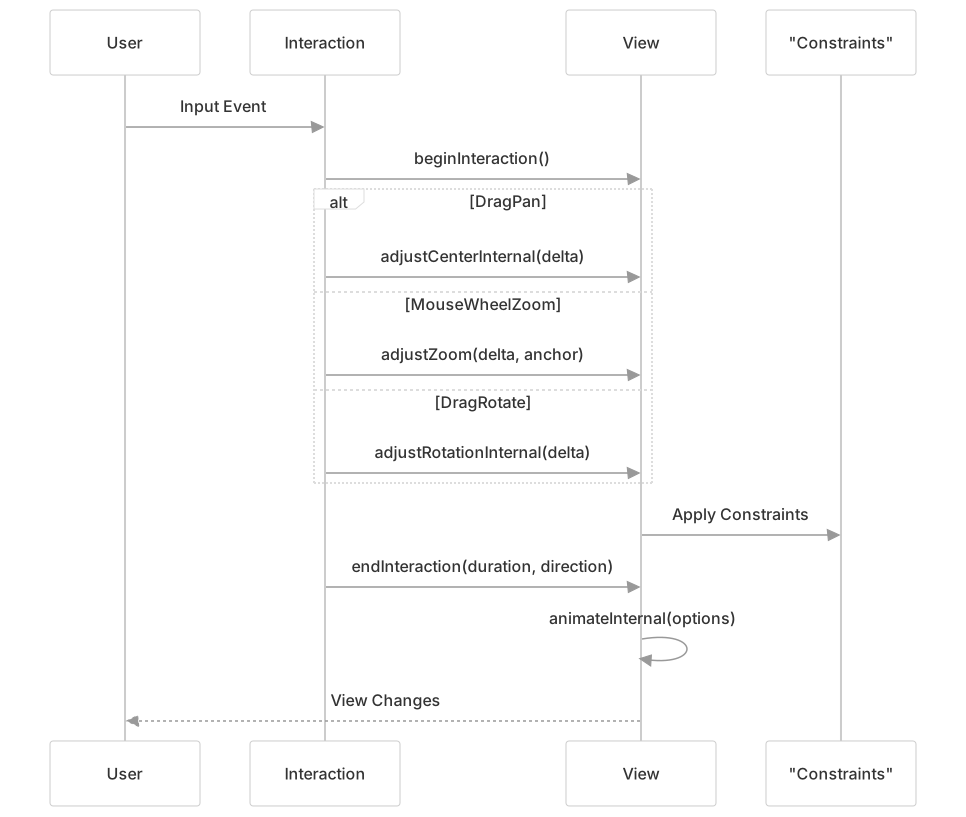
Constraints
The View applies constraints to navigation to ensure the map stays within defined bounds and has appropriate behavior. Three types of constraints affect navigation interactions:
- Center Constraint: Limits where the map center can be positioned
- Resolution Constraint: Controls the minimum and maximum resolution (zoom levels)
- Rotation Constraint: Determines allowed rotation values
// Example constraint definitions
centerConstraint = createExtent(extent, onlyCenter, smooth);
resolutionConstraint = createSnapToResolutions(resolutions, smooth, maxExtent, showFullExtent);
rotationConstraint = createSnapToZero(tolerance);During and after interactions, these constraints are applied to ensure the view remains within allowed parameters.
Animation
Most navigation interactions include animation to provide a smooth user experience. After an interaction ends, the view may animate to its final state:

The animation system in OpenLayers supports:
- Duration control (how long the animation takes)
- Easing functions (how the animation accelerates and decelerates)
- Chained animations (multiple animations run in sequence)
- Simultaneous animations (center, resolution, and rotation can animate independently)
Customizing Navigation Interactions
Configuring Default Interactions
When creating a map, you can configure the default interactions or provide your own set:
// Using default interactions with configuration
const map = new Map({
  interactions: defaultInteractions({
    mouseWheelZoom: false,           // Disable mouse wheel zoom
    dragPan: {
      kinetic: new Kinetic(-0.01, 0.05, 100) // Custom kinetic settings
    }
  })
});

// Providing a completely custom set of interactions
const map = new Map({
  interactions: [
    new DragPan(),
    new MouseWheelZoom({
      useAnchor: false,  // Always zoom to center
      duration: 500      // Longer animation duration
    })
  ]
});Interaction Conditions
Each interaction can have conditions that determine when it responds to events:
// DragPan only while holding Alt key
const dragPan = new DragPan({
  condition: altKeyOnly
});

// MouseWheelZoom only when Shift key is held
const mouseWheelZoom = new MouseWheelZoom({
  condition: shiftKeyOnly
});OpenLayers provides several built-in condition functions like shiftKeyOnly, altKeyOnly, primaryAction, etc.
Best Practices
Responsive Interactions: Consider configuring different interactions for different devices (e.g., enable touch interactions only on touch devices)
Performance: For low-powered devices or complex maps:
- Use longer animation durations
- Consider disabling kinetic panning
- For large datasets, adjust interaction constraints
Usability Considerations:
- Set appropriate interaction constraints based on your map content
- For precise navigation, use
constrainResolution: trueto snap to zoom levels - For general browsing, use smooth zooming with
constrainResolution: false
Common Configurations:
- For perspective views: Use unconstrained rotation
- For traditional web maps: Constrain rotation to zero or disable rotation interactions
- For maps with extensive data: Consider limiting extent to relevant areas
Troubleshooting
Common issues with navigation interactions include:
Unexpected Navigation Behavior:
- Check constraints on the view
- Review interaction conditions
- Ensure animations are not being canceled unexpectedly
Performance Problems:
- Reduce animation duration
- Simplify map contents
- Consider disabling smooth constraint options
Interactions Not Working:
- Verify the interaction is active
- Check that conditions are being met
- Inspect event propagation (interactions are checked in reverse order)