Markers and Popups
This page documents the Markers and Popups UI components in Mapbox GL JS, which allow developers to add interactive points of interest and information windows to maps. Unlike map layers which are rendered directly in WebGL, markers and popups are implemented as HTML elements positioned over the map canvas.
For information about other UI components like navigation controls, scale controls, etc., see Controls. For details on interaction handling, see Interaction and Events.
Overview and Architecture
Markers and popups are part of the UI components system in Mapbox GL JS. They provide a way to add interactive elements to the map that remain tied to specific geographic coordinates even as the map is panned, zoomed, or rotated.

Marker System
Markers are HTML elements that visually mark specific geographic locations on the map. They can be simple default markers or customized HTML elements.
Creating and Positioning Markers
Markers are created using the Marker class constructor and positioned using setLngLat():
// Create a default marker
const marker = new mapboxgl.Marker()
    .setLngLat([longitude, latitude])
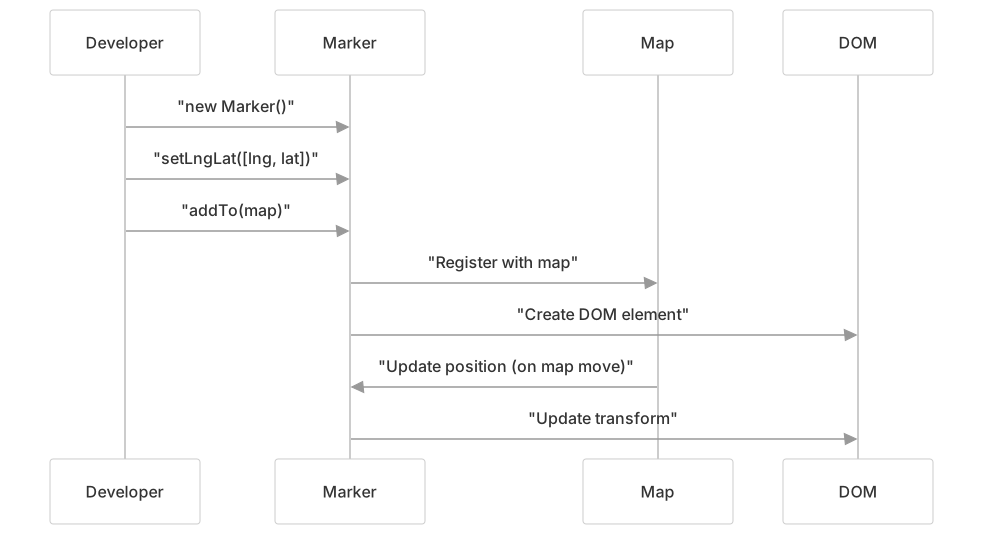
.addTo(map);When a marker is added to the map, it creates a DOM element with the class mapboxgl-marker. The marker's position is maintained using CSS transforms as the map moves.
DOMMapMarkerDeveloperDOMMapMarkerDeveloper"new Marker()""setLngLat([lng, lat])""addTo(map)""Register with map""Create DOM element""Update position (on map move)""Update transform"Marker Styling and Customization
Markers can be customized by:
- Passing an HTML element to the constructor
- Setting properties like color, rotation, and scale
- Making them draggable for user interaction
// Create a custom HTML element
const el = document.createElement('div');
el.className = 'custom-marker';

// Create a marker with the custom element
const marker = new mapboxgl.Marker({
    element: el,
    color: '#FF0000',
    scale: 1.5,
    draggable: true,
    rotation: 45
}).setLngLat([longitude, latitude])
.addTo(map);The CSS for markers defines their basic appearance with absolute positioning and opacity transitions:
.mapboxgl-marker {
    position: absolute;
    top: 0;
    left: 0;
    will-change: transform;
    opacity: 1;
    transition: opacity 0.2s;
}Popup System
Popups are information windows that display content over the map. They can be standalone or attached to markers.
Creating and Using Popups
Popups are created with the Popup class and can display HTML content:
// Create a standalone popup
const popup = new mapboxgl.Popup()
    .setLngLat([longitude, latitude])
    .setHTML('<h3>Hello World!</h3>')
.addTo(map);The example from the debug page shows creating a popup on map click:
map.on('click', function(e) {
    if (e.originalEvent.shiftKey) return;
    (new mapboxgl.Popup())
        .setLngLat(map.unproject(e.point))
        .setHTML("<h1>Hello World!</h1>")
        .addTo(map);
});Popup Structure and Components
A popup consists of several HTML elements with specific classes:
The CSS for these components defines their appearance:
| Component | CSS Class | Purpose |
|---|---|---|
| Container | .mapboxgl-popup | Main popup container with positioning |
| Tip | .mapboxgl-popup-tip | Triangular pointer indicating anchor point |
| Content | .mapboxgl-popup-content | Container for the popup content |
| Close Button | .mapboxgl-popup-close-button | Button to close the popup |
Popup Anchoring and Positioning
Popups can be anchored to different positions relative to their geographic coordinates. The anchor determines how the popup is positioned and which direction the tip points.

The anchor position is set using the setAnchor() method:
popup.setAnchor('top-left');The CSS for different anchors changes the flex direction and tip styling:
.mapboxgl-popup-anchor-top,
.mapboxgl-popup-anchor-top-left,
.mapboxgl-popup-anchor-top-right {
    flex-direction: column;
}

.mapboxgl-popup-anchor-bottom,
.mapboxgl-popup-anchor-bottom-left,
.mapboxgl-popup-anchor-bottom-right {
    flex-direction: column-reverse;
}Integration between Markers and Popups
Popups can be attached to markers to create interactive points of interest:
// Create a marker with an attached popup
const marker = new mapboxgl.Marker()
    .setLngLat([longitude, latitude])
    .setPopup(new mapboxgl.Popup().setHTML('<h3>Hello World!</h3>'))
    .addTo(map);

// The popup will appear when the marker is clickedCommon Interaction Patterns
MapPopupMarkerUserMapPopupMarkerUser"Click""Show popup""Add to map""Click close button""Remove from map""Click elsewhere""Close popup""Remove from map"Popup Tracking and Hover Effects
Popups can be configured to track the mouse pointer, useful for creating hover effects:
const popup = new mapboxgl.Popup({
    closeButton: false,
    closeOnClick: false,
    trackPointer: true
});The CSS includes specific classes for tracking pointer behavior:
.mapboxgl-popup-track-pointer {
    display: none;
}

.mapboxgl-map:hover .mapboxgl-popup-track-pointer {
    display: flex;
}

.mapboxgl-map:active .mapboxgl-popup-track-pointer {
    display: none;
}Advanced Customization
Custom Styling
Both markers and popups can be styled with custom CSS by targeting their class names:
/* Custom popup styling */
.mapboxgl-popup-content {
    background-color: #3e3e3e;
    color: white;
    border-radius: 5px;
    padding: 15px;
}

.mapboxgl-popup-tip {
    border-top-color: #3e3e3e; /* For bottom-anchored popups */
}

/* Custom marker styling */
.custom-marker {
    background-image: url('marker.png');
    background-size: cover;
    width: 30px;
    height: 30px;
    cursor: pointer;
}Accessibility Considerations
When creating markers and popups, consider accessibility by:
- Using proper semantic HTML within popups
- Adding ARIA attributes to custom marker elements
- Ensuring sufficient color contrast for text content
- Providing keyboard navigation support
Performance Considerations
For maps with many markers:
- Consider using symbol layers from data sources for better performance
- Add and remove markers dynamically based on the viewport
- Implement clustering for dense marker collections
- Limit the number of simultaneously open popups
Events
Both markers and popups emit events that can be handled:
// Marker events
marker.on('dragstart', () => console.log('Started dragging'));
marker.on('dragend', () => console.log('Finished dragging'));

// Popup events
popup.on('open', () => console.log('Popup opened'));
popup.on('close', () => console.log('Popup closed'));For more detailed information about event handling, see Interaction and Events.
Reference
Marker Options
| Option | Type | Default | Description |
|---|---|---|---|
element | HTMLElement | Default marker | Custom HTML element to use as the marker |
color | string | '#3FB1CE' | Color of the default marker |
scale | number | 1 | Scale factor for the marker |
draggable | boolean | false | Whether the marker can be dragged |
rotation | number | 0 | Rotation angle of the marker in degrees |
anchor | string | 'center' | Position of the marker relative to coordinates |
offset | PointLike | [0, 0] | Pixel offset from the marker's anchor position |
Popup Options
| Option | Type | Default | Description |
|---|---|---|---|
closeButton | boolean | true | Whether to show the close button |
closeOnClick | boolean | true | Whether to close the popup when the map is clicked |
closeOnMove | boolean | false | Whether to close the popup when the map moves |
anchor | string | 'bottom' | Position of the popup relative to coordinates |
offset | number, PointLike, Object | 0 | Pixel offset from the popup's anchor position |
className | string | '' | Additional class to add to the popup |
maxWidth | string | '240px' | Maximum width of the popup |
trackPointer | boolean | false | Whether the popup should track the mouse pointer |
focusAfterOpen | boolean | true | Whether the popup should receive focus when opened |